Studio
Studio is where you turn signal into your own content. It helps you spot what your audience cares about, track momentum as it builds, and draft post ideas you can write in your own voice.
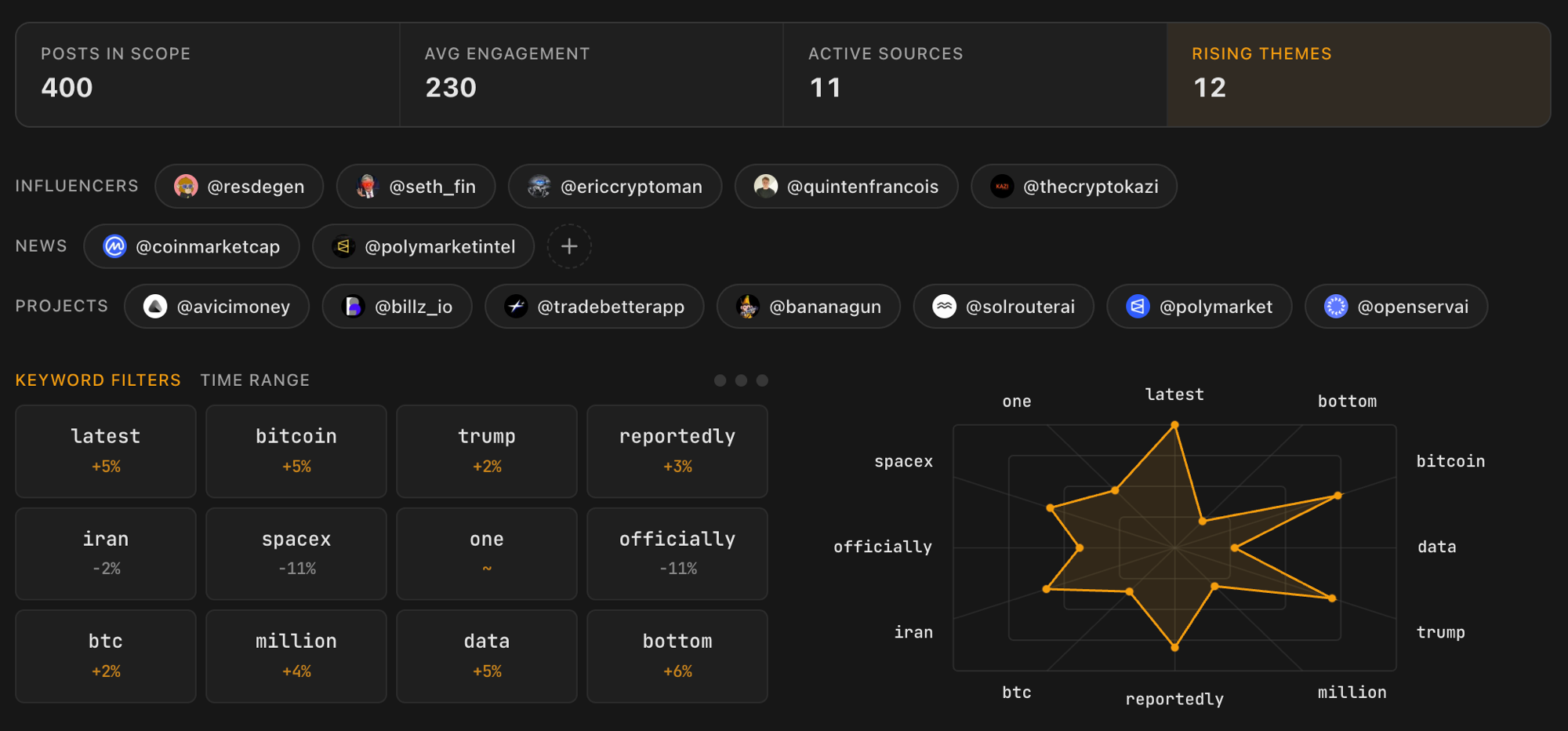
Choose your sources
The same account chips as Filter let you pick which tracked accounts Studio should analyze. A pulse bar at the top shows posts in scope, average engagement, how many accounts are contributing, and how many themes are rising. Studio works from the accounts you track, not your own profile.
The signal panel
On the left, the signal panel has two modes:
- Keyword Filters is a grid of the top momentum keywords from the posts in scope. Each
tile shows the keyword and how its engagement has moved recently (NEW for a first
appearance, a percentage up or down, or
~for flat). Tap up to three to focus on; tap a selected one again to hide it; restore brings hidden keywords back. Selecting a theme both filters the Posts tab and plots it on the radar. - Time Range is the same date slider you know from Filter, kept in sync across both pages.
Topic radar
On the right, the topic radar plots your selected keywords' momentum over recent hours, so you can see at a glance what is heating up and what is cooling off.
Posts
The first tab shows posts matching your keyword selection, with the usual view, sort (ENG, VRL, QUAL), and search controls. Pin any post to a group to save it, and use Show more to pull in the rest of the matches.
Pinned
The Pinned tab is your staging area, split into two columns: Posts and Ideas. A group bar across the top lets you create, rename, and delete groups to keep things tidy (for example "threads to write" or "good hooks"). Posts can be pinned here from Filter or from Studio's Posts tab; ideas come from the Idea board. When you schedule an idea it moves to the Scheduler board and leaves this view.
Idea board
This is where Studio drafts content for you. You set the context, generate a batch of ideas, then refine and keep the ones worth writing.
Build ideas
Pick a group from the pills at the top (All, or any group you have made) to set the context. Building inside a group feeds its pinned posts into the prompt, alongside your selected accounts, the themes you picked, and your current date range. Press Build to generate a batch, then Build more to add another.
Anatomy of an idea
Each idea arrives as a card you can scan at a glance:
- Angle: the stance it takes, picked from the six below.
- Title and description: the hook and a one-line summary.
- Talking points: the beats to hit if you write it.
- Source posts: links back to the posts that inspired it.
| Angle | Leans |
|---|---|
| Contrarian | Challenges the consensus |
| Educational | Teaches a concept |
| Analysis | Breaks down what is happening |
| Hot take | A sharp, opinionated stance |
| Narrative | Tells a story |
| Question | Opens a discussion |
The workspace
Click a card to expand it. The workspace lays out the full talking points, a Why this row of the signal keywords the idea hits, and the source posts (each expands into a full post card). From here you can evolve the idea:
| Action | What it does |
|---|---|
| More like this | Spins variations on the same angle |
| Flip the angle | Takes the opposite stance |
| Generate hook | Writes opening lines you can copy straight out |
Evolved ideas keep a link back to the one they came from, so you can step back up the chain at any point.
Keep or drop
Pin the ideas worth writing to a group, or dismiss the ones that miss. Pinned ideas wait in the Pinned tab until you schedule them.
Building, evolving, and writing hooks all use your plan's usage. See how usage and billing work under Settings.
From idea to posted
Once you have ideas you like, take them to the Scheduler to plan when they go out, and to Frame to design a visual for them.