Timelines
The Timelines section is where you read signal. It has three surfaces: Filter, Explore, and Track.
Filter
Your main workspace: a ranked feed of posts from the accounts you track, with everything you need to slice it down.
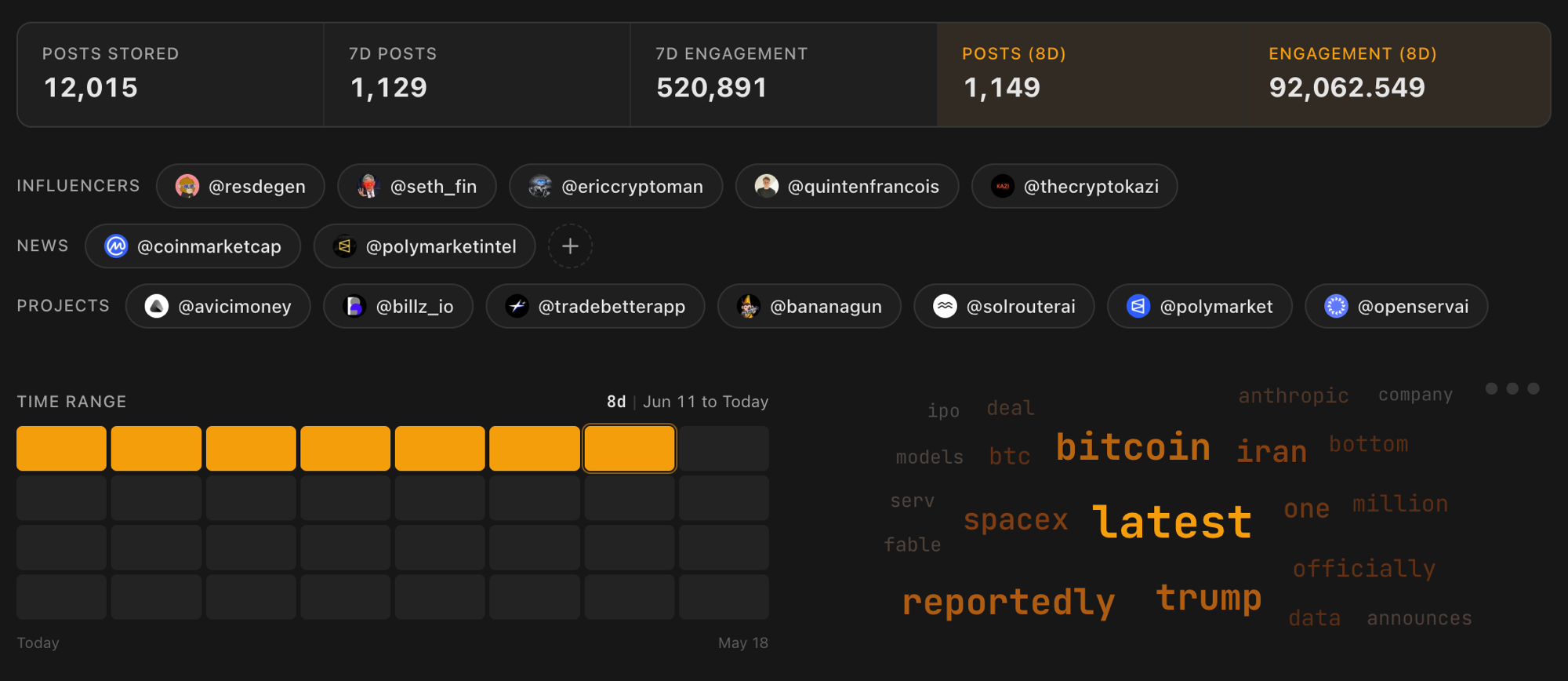
What you can do:
- Pick accounts. Account chips toggle through three states: neutral, selected, and excluded, so you can focus on or hide specific accounts.
- Set a time range. The day boxes choose the window you are analyzing (1 box = 1 day).
- Read the word cloud. Trending keywords from the current posts appear as a cloud. Click a word to filter by it, click again to hide it.
- Search. Find posts by text, author, or handle.
- Sort by signal. The ENG, VRL, and QUAL pills sort by engagement, virality, and quality. They turn on once at least ten posts are in view. See the Scoring engine.
- Filter by views. Trim the feed to only the most-watched posts (top 50%, 25%, or 10% by view count), measured against the posts currently in view.
A stats bar across the top shows totals: posts stored, recent post and engagement counts, and the totals for your current date range.
Explore
Discovery beyond your watchlist: see what the broader community is reading and find new voices.
What you can do:
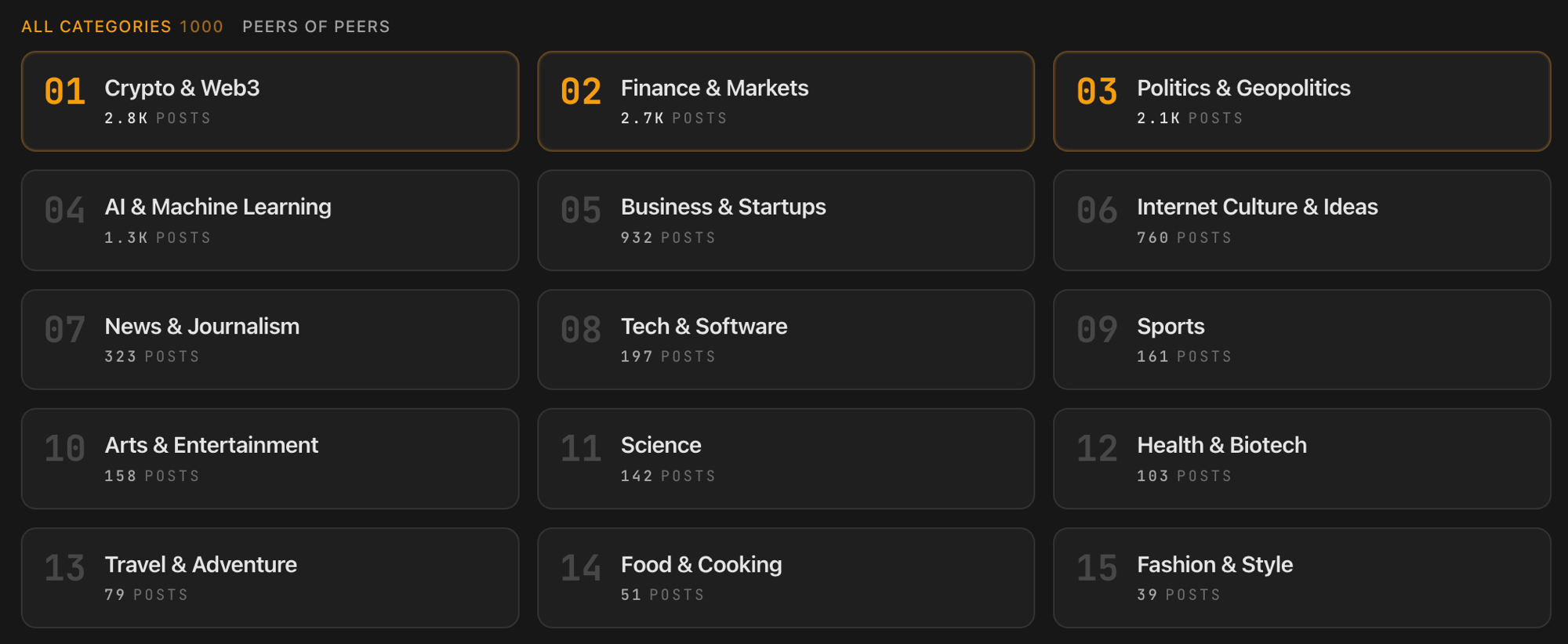
- All Categories is a community-style view of every post MBER has scraped, not just the accounts you track. Browse the niche taxonomy and drill into subcategories to discover accounts you have never seen. See the Categorization engine.
- Peers of Peers surfaces accounts followed by people whose watchlist overlaps yours by 70% or more, showing you the accounts they follow that you are missing. It unlocks once you track at least eight handles.
- Breadcrumbs show where you are in the category tree, so you can step back up.
- A time range selector (7, 14, 30, or 90 days), the same view and sort controls as Filter, and a context-aware search round it out.
Track
Deep-dive analytics for one account at a time: how it is growing and how its posts perform. Because MBER scrapes your own handle alongside the accounts you track, Track works on your own account and on anyone else you follow, so you can study your own performance and benchmark it against the accounts you care about.
What you can do:
- Switch accounts with a dropdown. It defaults to your own profile, and you can point it at any account you track.
- Read the stats bar: followers, following, posts stored, last collected, and the latest post time.
- Scan recent activity: a summary of the account's most notable recent moves, the categories it belongs to, and its top keywords.
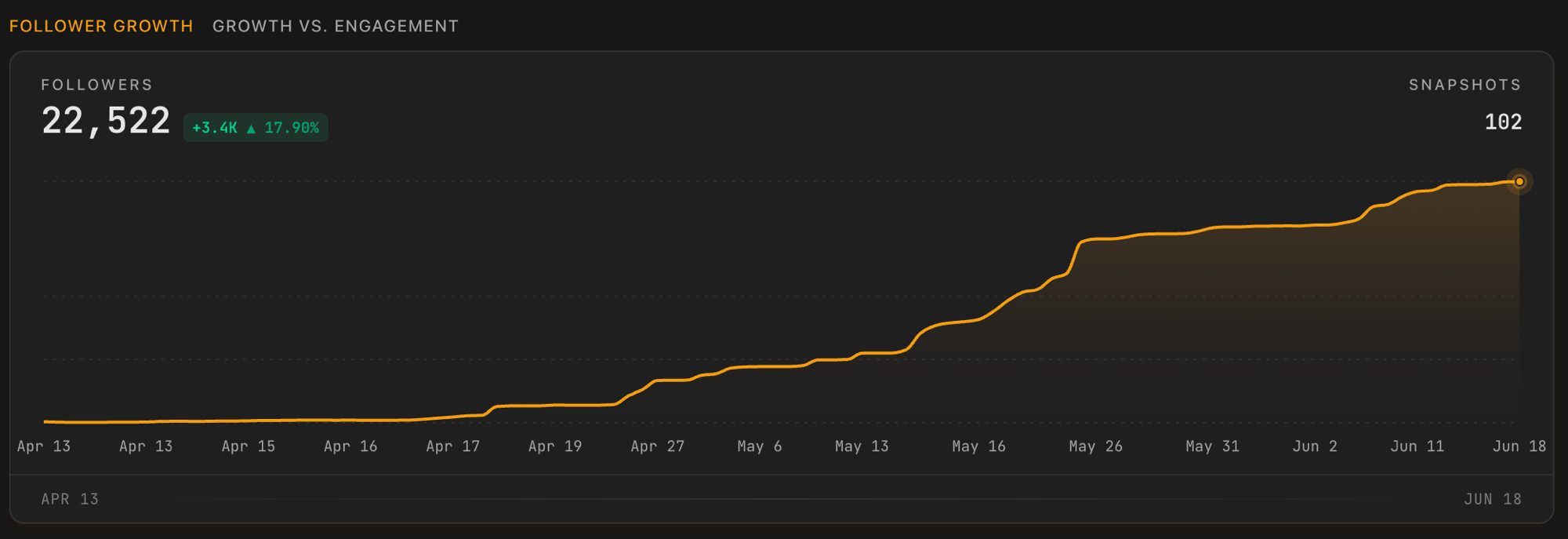
- See growth over time with a follower-growth line chart and a growth-versus- engagement view. Charts appear once MBER has at least two snapshots to compare.
- Browse latest posts for the selected account and time range, with the same view, sort, and search controls.
Track vs Handles:
Track is for reading one account's analytics. To add, remove, or organize the accounts you watch, use Handles (see Settings).